<h2>Places on my list</h2>
Chapter 4Grow your website
Your page has a heading and two paragraphs. In this chapter, you’ll give it more structure, link it to other websites, and add a second page. You’ll work on your computer throughout, checking each change in your browser, and publish everything at the end.
Keep VS Code and your browser open side by side if your screen has room. After each change, save the file and refresh the browser.
Add a subheading
Let’s give your second paragraph a heading of its own, so readers can see what that part of the page is about.
The main heading uses h1. For a heading one level below it, use h2. The number
describes where the heading belongs in the page’s structure, not how big it looks.
Between your two paragraphs, on a new line, add:
Change the words to suit your subject and the paragraph that follows. If your page is about music, you might use “Bands I want to see”.
Checkpoint
After you save and refresh, your page shows the main heading, the first paragraph, the new subheading and the second paragraph, in that order.
You can use several h2 headings if you add more sections later. Keep one h1 for
the page’s main heading.
Make a list
Some things are easier to read as a list. HTML has an unordered list element, ul,
for items that don’t need numbering. Each entry goes inside a list item element,
li.
After your second paragraph, add:
<ul>
  <li>York</li>
  <li>Edinburgh</li>
  <li>Bath</li>
</ul>
The ul tags surround the whole list. Each item has its own pair of li tags.
The spaces before each <li> are indentation. They make it easier to see that the
items belong inside the list, and they don’t appear on the page.
Replace the three place names with entries for your subject.
Checkpoint
Your page shows three entries with bullet points beneath the second paragraph. The browser adds the bullets; you didn’t need to type them.
Try adding a fourth item yourself, after the third and before </ul>.
Link to another website
A link takes someone from your page to another page when they click or tap it. HTML
uses the a element for links. Here’s a paragraph containing one:
<p>Find out more about <a href="https://visityork.org/">visiting York</a>.</p>
The words “visiting York” are the link text: the part someone clicks. The rest of the sentence is ordinary paragraph text.
The opening tag contains something new: href. This is an attribute, which gives
extra information about an element. Here, its value is the address the link leads to.
The value goes after an equals sign, inside straight double quotes. The closing tag is
still just </a>.
Add the paragraph after your list. Then change it to suit your subject: visit a website you’d like to link to, copy its address from your browser’s address bar, and paste it between the quotes in place of the York address. Change the sentence and the link text to match.
Choose link text that tells the reader where they’ll go. “Visiting York” tells them much more than “click here”.
Checkpoint
Clicking the link takes you to the website you chose. Your browser’s Back button returns you to your page.
If the link goes to the wrong place, check the address inside href. If it isn’t a
link at all, compare the tags and quotes with the example.
Put a link in your list
Elements can go inside other elements. Putting one element inside another is called
nesting. To make a list item into a link, put an a element inside the li:
<li><a href="https://visityork.org/">York</a></li>
The li opens first, then the a. The link closes before the list item does.
Choose one of your list items and make it into a link to a website about that item.
Checkpoint
The item is still part of your bulleted list, but its words are now a link that opens the website you chose.
Create a second page
Your links can lead to pages you’ve made yourself. Let’s add an About page explaining what your website is for.
In VS Code, create a new file in your my-website folder, next to index.html. Call
it about.html and enter:
<h1>About this website</h1>
<p>This is where I collect things I want to share.</p>
Change the paragraph to explain your website’s subject. This is a separate page, so it has its own main heading.
Save the file and open it in your browser, in the same way as you opened index.html.
Link the two pages together
At the end of index.html, add:
<p><a href="about.html">About this website</a></p>
The address in this link is just a filename. It’s a relative address: the browser
looks for about.html in the same folder as the page you’re viewing. That works on
your computer, and it will keep working once both files are published together.
Then, at the end of about.html, add a link back:
<p><a href="index.html">Back to the home page</a></p>
Checkpoint
Open index.html in your browser. You can follow the link to your About page, and
the link back to your home page.
If either link doesn’t work, check that the filename in href exactly matches the
file’s name, including lower-case letters and the .html ending, and that both files
are in the same folder.
Give the page a title
So far, you’ve written the content people read. HTML also has a place for information about the page, such as the title on the browser tab.
In index.html, add these lines before your first <h1>:
<!doctype html>
<html lang="en">
<head>
  <title>My website</title>
</head>
<body>
Change “My website” to a title for your website. Then, at the very end of the file, after everything else, add:
</body>
</html>
Your existing content now sits between <body> and </body>. Here’s what each new
part does:
-
<!doctype html>tells the browser to follow current web standards, rather than older compatibility rules. It isn’t an element, so it has no closing tag. It always goes on the first line. -
htmlsurrounds the whole document. Itslang="en"attribute says the page is in English, which helps tools such as screen readers pronounce the text correctly. -
headholds information about the page. It isn’t the heading at the top of the page; that’s still yourh1. -
titlegives the page a name for the browser tab. It belongs insidehead. -
bodyholds the content people read: everything you’ve written so far.
Checkpoint
After you save and refresh, the browser tab shows your title. Your page’s content hasn’t changed.
Help the browser read the page
Two more lines give the browser useful information. Immediately after <head>, before
<title>, add:
  <meta charset="utf-8">
  <meta name="viewport" content="width=device-width, initial-scale=1">
The first line sets the character encoding: how the browser should turn the stored file into text. UTF-8 covers text in almost every language, including accented letters.
The second line describes the viewport, the area of a browser that displays the page. These settings ask a phone or tablet to use its own screen width, rather than showing a wide page shrunk down to fit. Visitors can still zoom in.
meta is a void element: it doesn’t wrap any content, so it has no closing tag.
The start of your file should now look like this, with your own title:
<!doctype html>
<html lang="en">
<head>
  <meta charset="utf-8">
  <meta name="viewport" content="width=device-width, initial-scale=1">
  <title>My website</title>
</head>
<body>
Give each page its own title
The About page needs the same structure. In about.html, add the same opening lines
before its heading, and </body> and </html> at the end.
Change its title so it names the page as well as the website. For a website called “Places I want to visit”, you could use:
<title>About - Places I want to visit</title>
Edit the existing title element rather than adding a second one.
Checkpoint
Each page shows its own title on the browser tab. You can still follow the links between them.
Publish your changes
Your website has grown on your computer, but the published version still has just two paragraphs. Let’s publish everything at once.
In your repository on GitHub, choose “Add file”, then “Upload files”. Drag both
index.html and about.html from your my-website folder onto the upload area.
GitHub replaces the existing index.html and adds the new about.html.
Enter a commit message such as Add a list, links and an About page, and commit the
change.
Wait for it to publish, then visit your website from its bookmark. Check it over:
-
Read your headings, paragraphs and list. Are they the words you meant to publish?
-
Follow each link to another website, using Back to return.
-
Follow the link to your About page, then the link back.
-
Check each page’s title on its browser tab.
-
If you have a phone, open your website on it too.
Checkpoint
Your published website has two linked pages, each with its own title, and the links to other websites work.
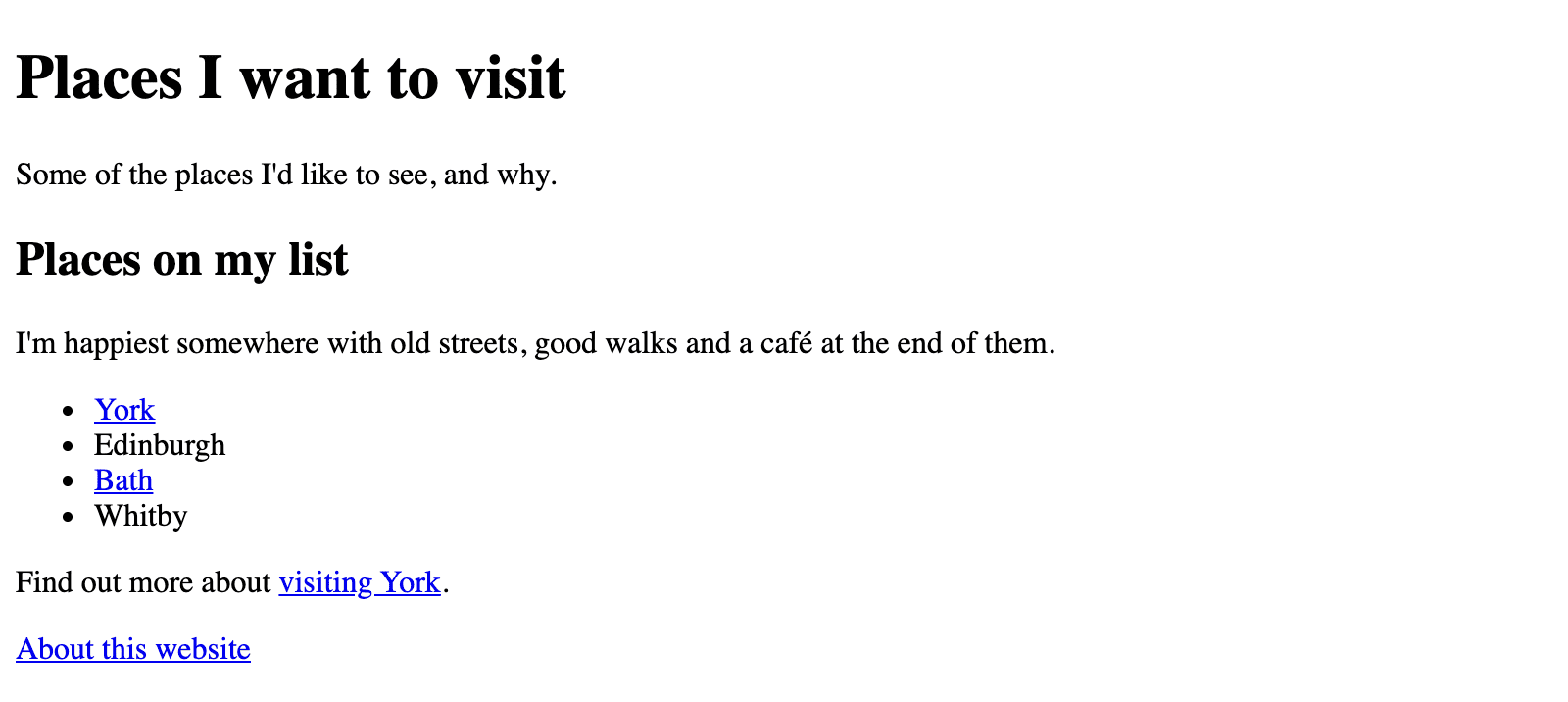
The home page at the end of Part 1
If something needs correcting, fix it on your computer, check it in your browser and upload the changed file again. Your website stays online without your computer or browser being open.
In the next part, you’ll start changing how your website looks, using CSS to choose its colours, type and spacing.
That’s the end of Part 1
Your website is online, with two pages and an address you can share. Part 2 carries on from here, with styles, structure and the browser’s developer tools, in the paperback, PDF and ebook editions.